Collect and validate input
Use Get-FluenceInput for one value and Show-FluenceDialog for a form. Both use the same prompt types described in the input type reference.
Collect one value
$server = Get-FluenceInput -Title 'Connection' -Message 'Server name' -DefaultValue 'localhost'
if ($null -eq $server)
{
    return
}
Cancel, Esc, the title bar close button, and timeout return $null. Change -InputType to Number, Password, Date, FileOpen, or another supported type when text is insufficient. Get-FluenceInput does not accept List; use Show-FluenceListSelection for a standalone list.
Collect several values
Create named prompts, then read their names from the Fluence.DialogResult:
$prompts = @(
    New-FluencePrompt -Name Server -Message 'Server name' -ValidateNotEmpty
    New-FluencePrompt -Name Port -Message 'Port' -InputType Number -DefaultValue 443
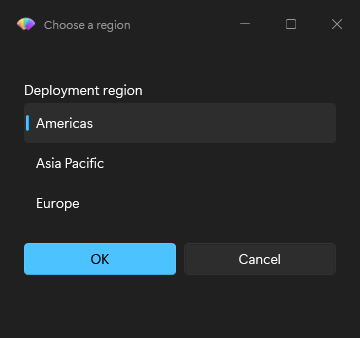
    New-FluencePrompt -Name Region -Message 'Region' -InputType Choice -ValidateSet 'Americas', 'Europe', 'Asia' -DefaultValue 'Europe'
)
$result = Show-FluenceDialog -Title 'Connection' -Prompts $prompts -Buttons 'Connect', 'Cancel'
if ($result.Connect)
{
    "Use $($result.Server):$($result.Port) in $($result.Region)"
}
Prompt and button names must be unique without regard to case. Cancelled, TimedOut, and PSTypeName are reserved. A bare string prompt creates a text field with a generated Input_ name, so use New-FluencePrompt -Name when scripts need the value.
Reject invalid input
The form dialog is available in both captured themes.
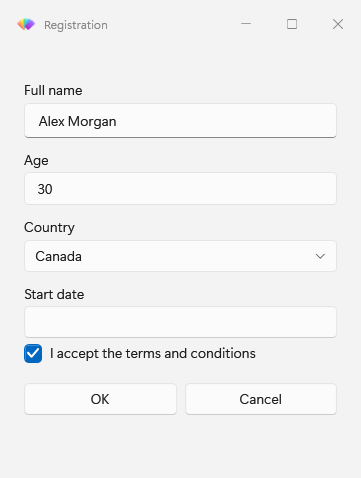
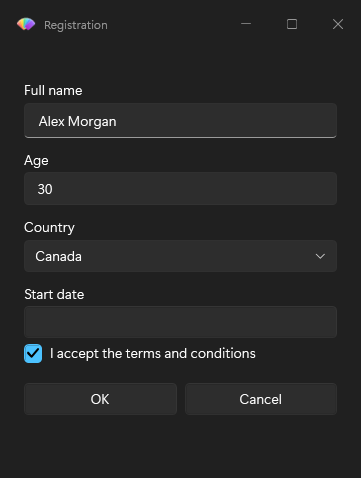
Validation runs in prompt order when a non-cancel button is clicked. The first failure appears in an error InfoBar and keeps the dialog open. Cancel, Esc, and title bar dismissal bypass validation.
$prompts = @(
    New-FluencePrompt -Name Email -Message 'Work email' -ValidateNotEmpty -ValidatePattern '^[^@\s]+@contoso\.com$'
    New-FluencePrompt -Name Port -Message 'Port' -InputType Number -ValidateScript { param($value) $value -ge 1 -and $value -le 65535 }
)
-ValidatePattern allows an empty value. Pair it with -ValidateNotEmpty to require one. A custom validator passes when its last output is truthy; an exception fails validation. On MTA hosts its scriptblock is recreated on the UI runspace, so keep it self-contained.
Offer choices and lists
Choice requires -ValidateSet and renders a combo box by default. Add -As Radio for radio buttons. List also requires -ValidateSet; add -MultiSelect to return an array, including when only one item is selected.
New-FluencePrompt -Name Edition -Message 'Edition' -InputType Choice -ValidateSet 'Standard', 'Pro' -As Radio
New-FluencePrompt -Name Features -Message 'Features' -InputType List -ValidateSet 'Core', 'Docs', 'Samples' -MultiSelect -ValidateNotEmpty
For a list without other fields:
$features = Show-FluenceListSelection -Message 'Select features' -Items 'Core', 'Docs', 'Samples' -MultiSelect -DefaultValue @('Core')
if ($null -eq $features)
{
    return
}
The list command returns $null on cancel or timeout. An OK response requires at least one selection.
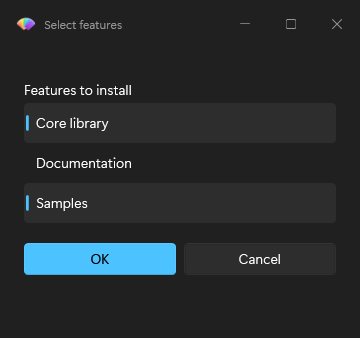
This capture shows multiple selected items.
Collect paths, dates, and passwords
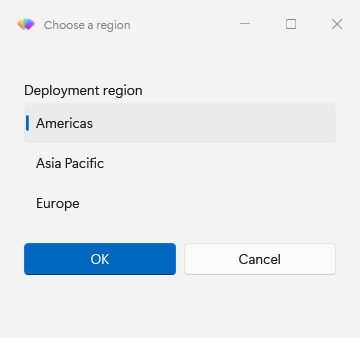
The standalone list selection dialog is also shown in both themes.
FileOpen, FileSave, and FolderOpen show a text box with a Browse button and return a path string. Date returns DateTime or $null; Time returns TimeSpan or $null. Numeric defaults are converted to double before the window opens.
Password uses the Fluence styled WPF PasswordBox and returns SecureString by default. Use the value with an API that accepts SecureString, then dispose it. Cancelled form results also contain captured secure values that need disposal.
$result = Show-FluenceDialog -Title 'Sign in' -Prompts @(
    New-FluencePrompt -Name User -Message 'Account' -ValidateNotEmpty
    New-FluencePrompt -Name Pass -Message 'Password' -InputType Password -ValidateNotEmpty
) -Buttons 'Login', 'Cancel'
try
{
    if ($result.Login)
    {
        $credential = [System.Management.Automation.PSCredential]::new($result.User, $result.Pass)
        # Pass $credential to the intended command here.
    }
}
finally
{
    if ($result.Pass -is [System.Security.SecureString])
    {
        $result.Pass.Dispose()
    }
}
Password defaults must be strings and remain plaintext in the prompt specification. Secure password validation can check Length without decryption. -ValidatePattern for passwords requires explicit -AsPlainText. That switch also makes the returned value a plain string, so use it only for APIs that require one.
The default console view of a dialog result shows its outcome flags, while explicit property access and serialization can expose entered values. See result objects for every property and value type.