Showing Dialogs and feedback
Add a confirmation button to the Basic Usage window, then show the result in an InfoBar while longer work uses a progress control.
Use ContentDialog for a decision that must be completed before work continues. Use InfoBar for an inline status message and progress controls for ongoing work.
Show a ContentDialog
Create the dialog on the UI dispatcher and await ShowAsync() while an owner window is active. The dialog returns a ContentDialogResult.
using Fluence.Wpf;
using Fluence.Wpf.Controls;

ContentDialog dialog = new()
{
    Title = "Delete file?",
    Content = "This action cannot be undone.",
    PrimaryButtonText = "Delete",
    CloseButtonText = "Cancel",
    DefaultButton = ContentDialogButton.Close
};

ContentDialogResult result = await dialog.ShowAsync();
bool confirmed = result == ContentDialogResult.Primary;
The dialog is hosted over the owner window, blocks input outside itself, and closes through its buttons or Escape. Only one dialog can be open on the same owner. Button click events can cancel closing; see the XML comments on PrimaryButtonClick, SecondaryButtonClick, and CloseButtonClick for the exact behavior.
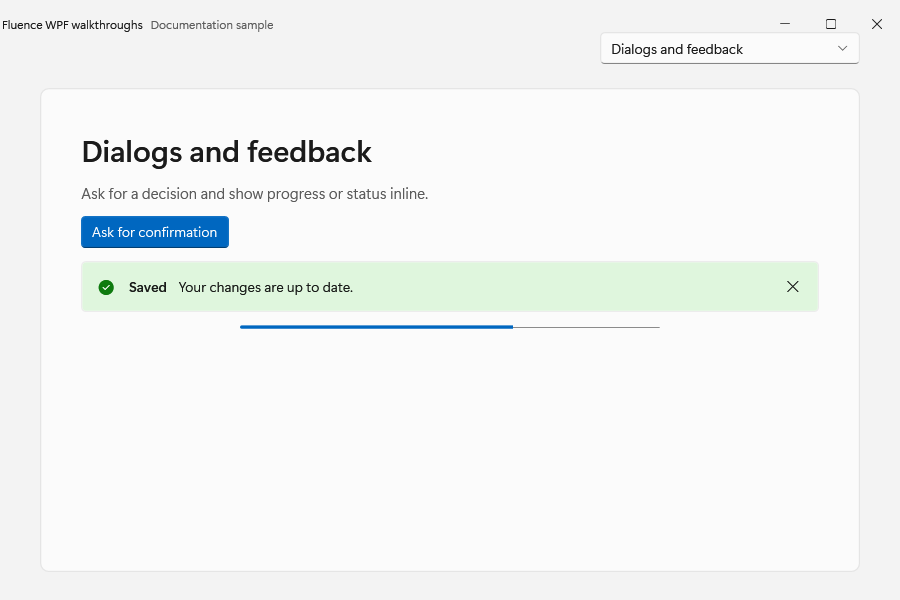
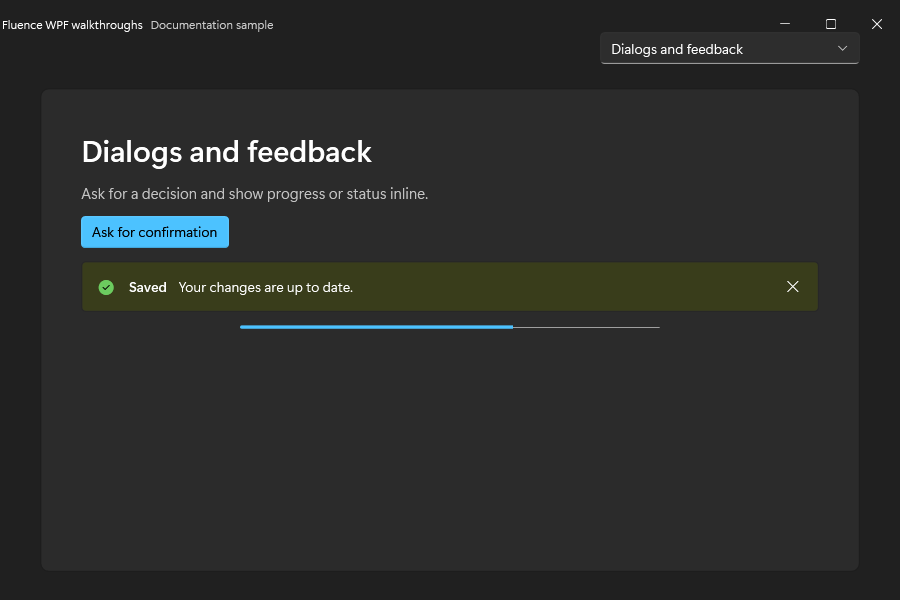
The demo's dialog and feedback controls in both themes:
Use inline status
InfoBar exposes Severity, Title, Message, and IsOpen. Its Opened, Closing, and Closed events report state changes. InfoBadge shows a compact status marker. Use ProgressBar for determinate progress or ProgressRing for a compact busy indicator.
For script-driven dialogs and progress windows, use the PowerShell module, which handles window hosting and returns result objects to the caller.